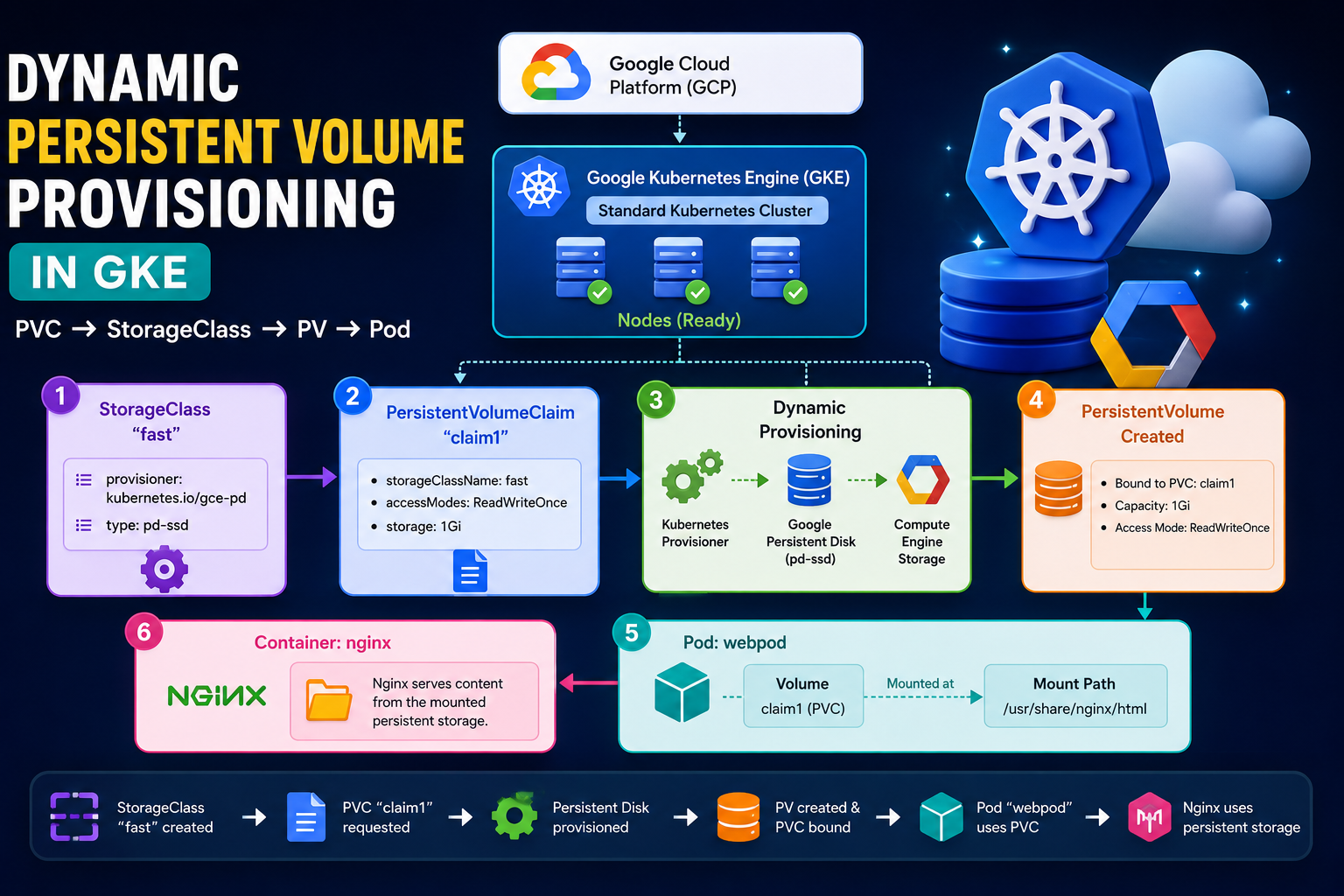
In this practical exercise, I worked with Google Cloud Platform (GCP), Google Kubernetes Engine (GKE), Kubernetes StorageClass, PersistentVolume (PV), PersistentVolumeClaim (PVC), and Pod storage. The main goal was to understand how Kubernetes can dynamically create persistent storage and attach that storage to a Pod. 🚀 Architecture The complete flow of this practical is: 1. Create a GKE Standard Cluster First, I created a Standard GKE cluster in Google Cloud. After
Tag: Kubernetes
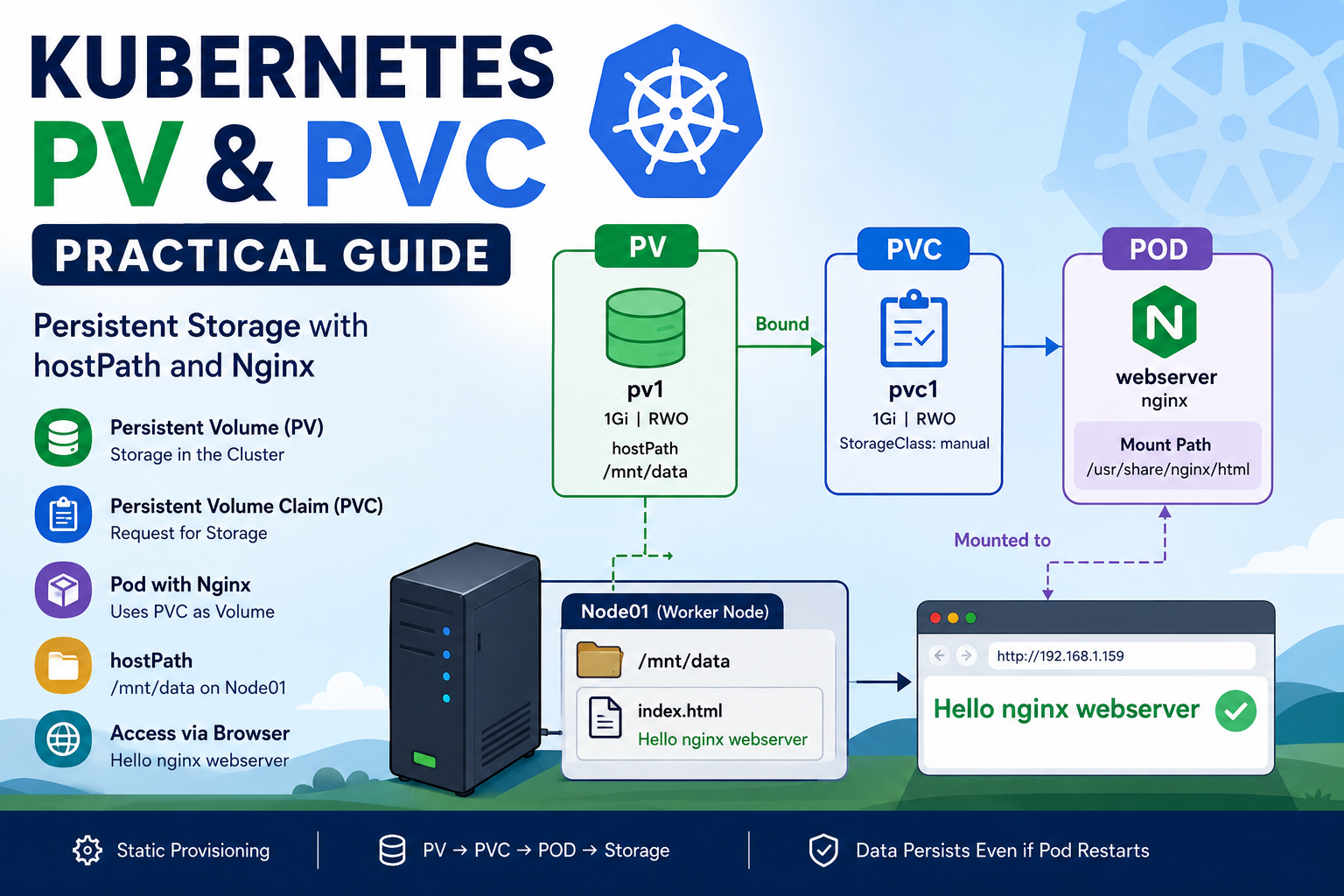
Kubernetes applications often need persistent storage to keep data even when containers restart or are recreated. Kubernetes provides Persistent Volumes (PV) and Persistent Volume Claims (PVC) to manage this storage. In this practical lab, we will create a PersistentVolume, create a PersistentVolumeClaim, attach the PVC to an Nginx Pod, and use a node’s /mnt/data directory as persistent storage through hostPath. What You Will Learn In this practical, we will understand:
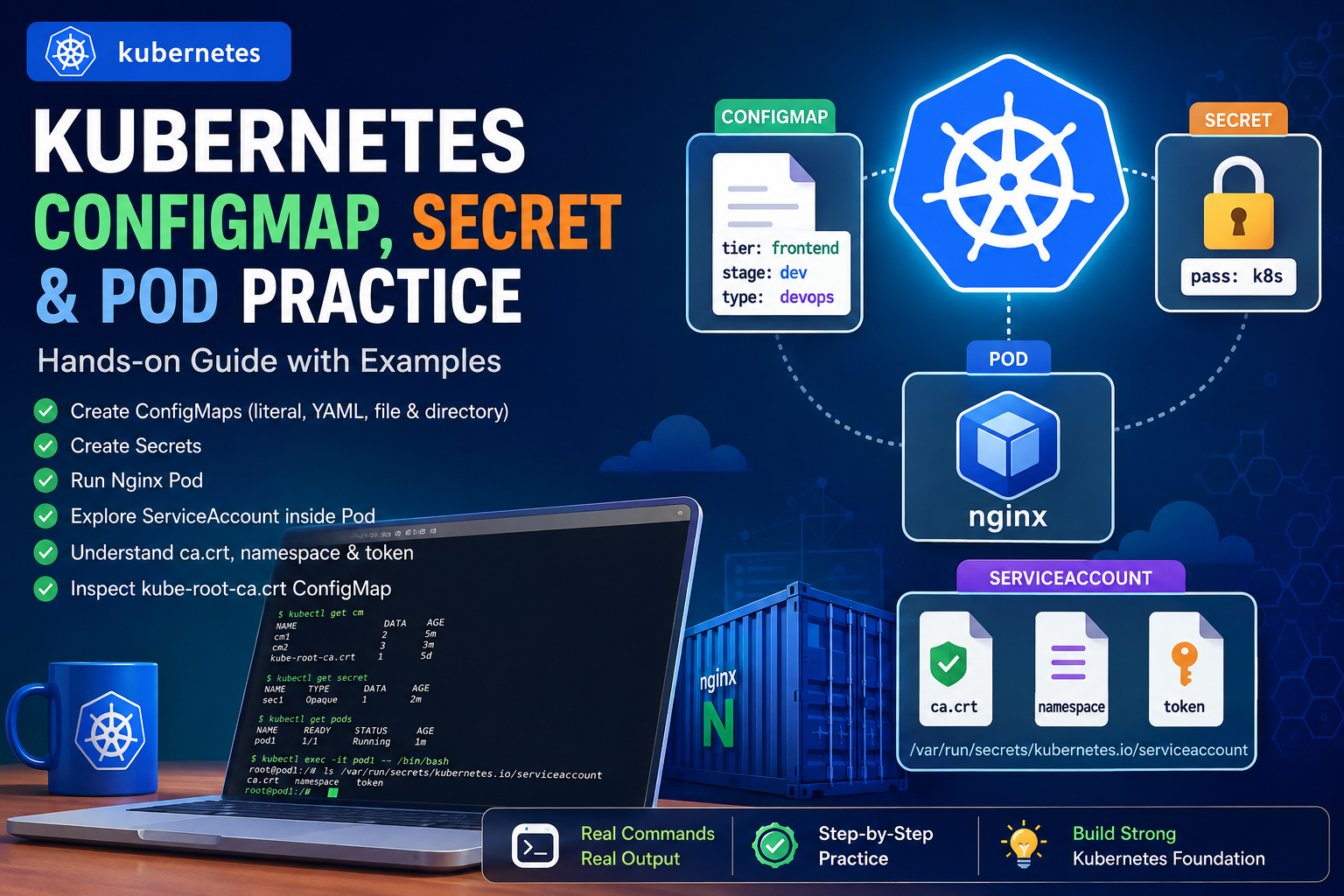
Kubernetes provides several powerful mechanisms for managing application configuration, sensitive information, containers, and access to the Kubernetes API. In this hands-on practice, I worked through: This article documents the complete workflow step by step. 1. Checking Existing ConfigMaps I started by checking the ConfigMaps already available in the namespace. Flow A ConfigMap is used to store non-sensitive configuration data separately from application code. 2. Creating a ConfigMap with Literal Values
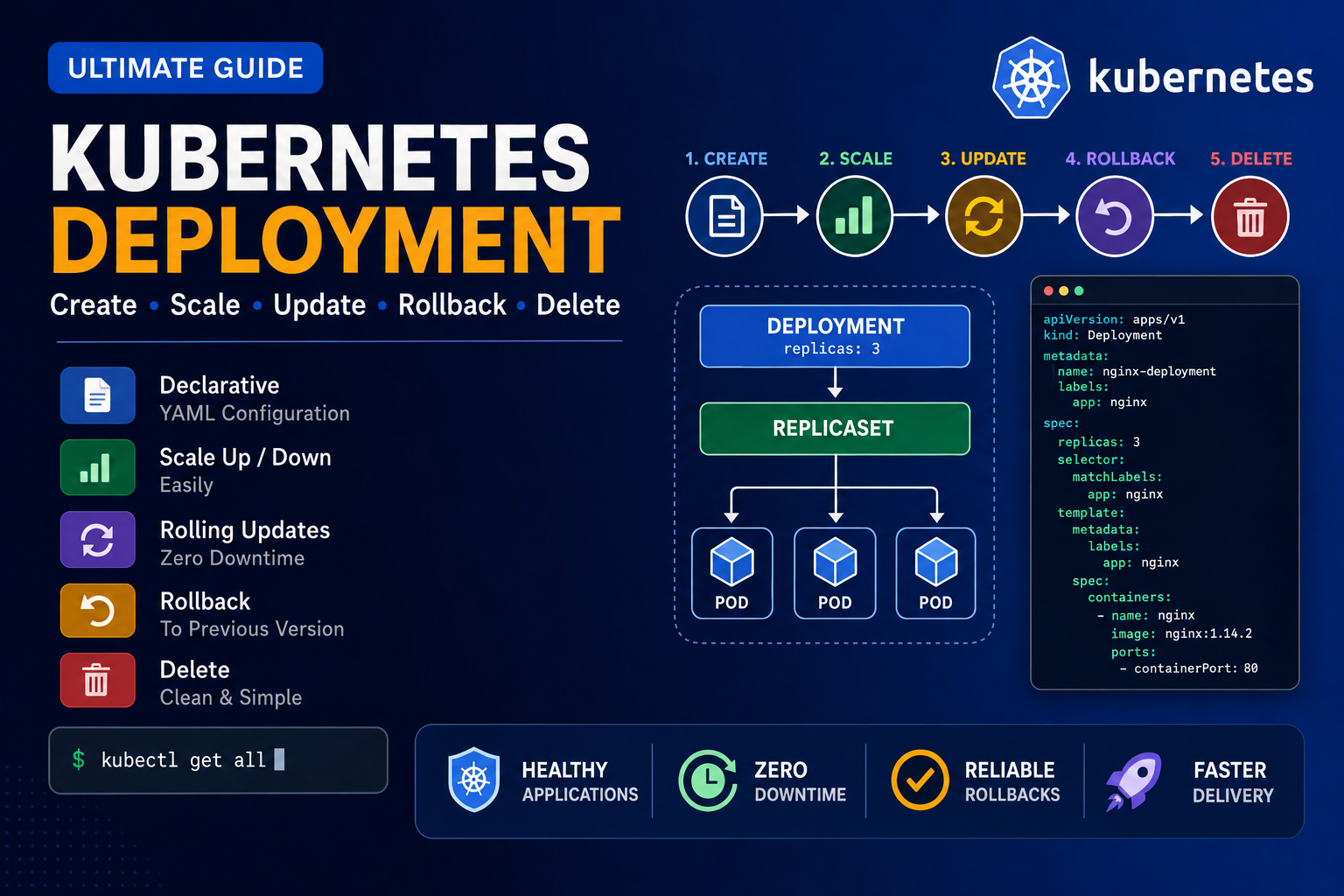
Below is the clean and correct command sequence for practicing Kubernetes Deployment, Scaling, Rolling Update, Rollout History, and Rollback. 1. Create a Deployment YAML file Use this YAML: Save and exit: 2. Create the Deployment Check the Deployment: Watch the Deployment: Press: to stop watching. 3. Check all resources Check Pods: Check ReplicaSets: 4. Learn kubectl create deployment Display help: Create another Deployment: Check all Deployments: Check only app1: 5.
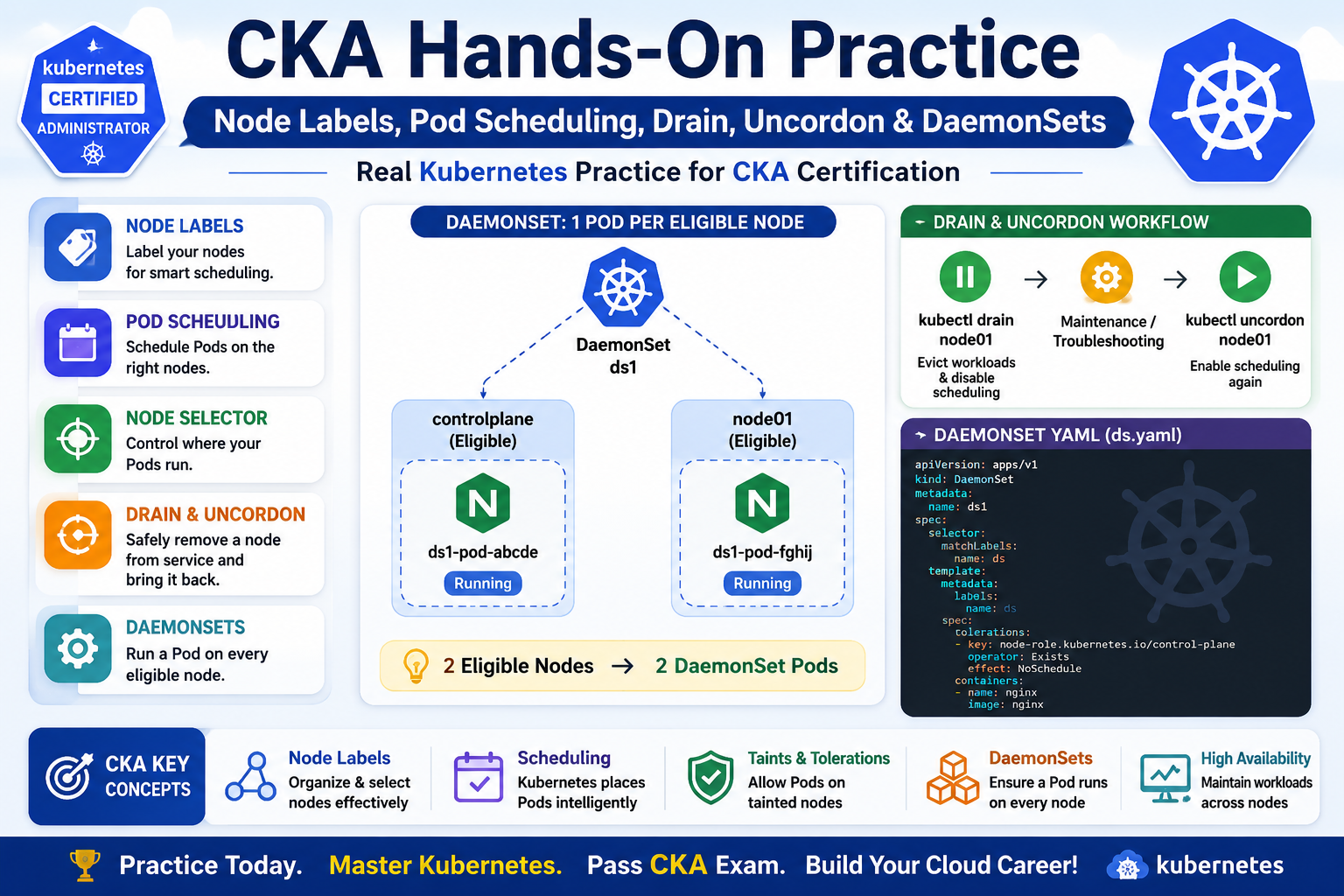
The main topics I practiced were: 1. Checking Kubernetes Nodes I started by checking the nodes in the cluster: kubectl get nodes Example: NAME STATUS ROLES VERSIONcontrolplane Ready control-plane v1.35.1node01 Ready <none> v1.35.1 My practice cluster contains two nodes: controlplanenode01 Both nodes were in the Ready state. 2. Working with Node Labels Next, I practiced Kubernetes node labels. First, I checked the existing labels: kubectl get nodes –show-labels Then I
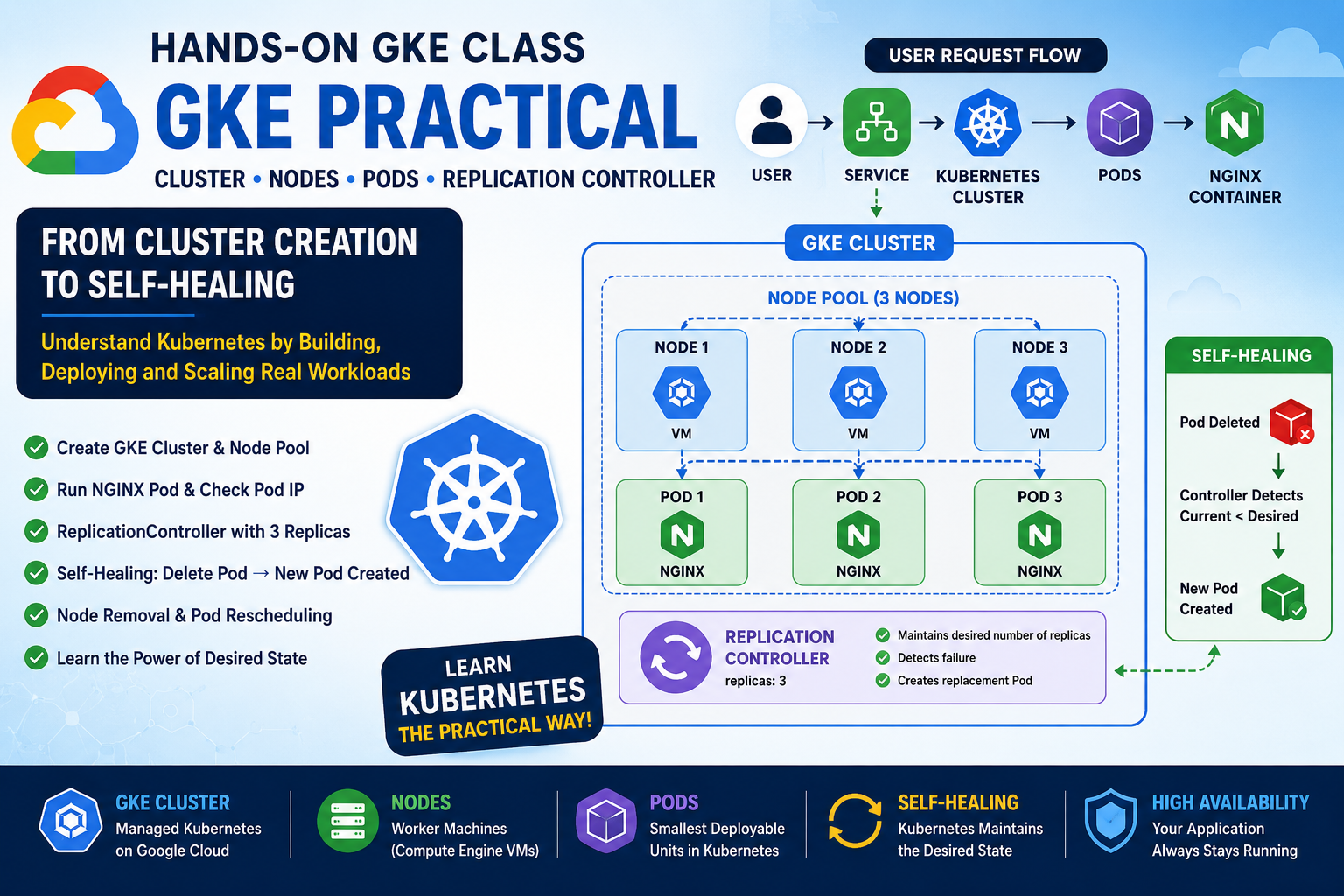
Google Kubernetes Engine (GKE) provides a managed Kubernetes environment on Google Cloud. In this hands-on class, I created a GKE Standard cluster, explored its nodes and underlying Compute Engine VMs, deployed an NGINX Pod, created a ReplicationController, tested self-healing, and finally simulated node removal. This practical exercise helped me understand an important Kubernetes principle: Kubernetes continuously works to maintain the desired state of our applications. 1. What is a Kubernetes