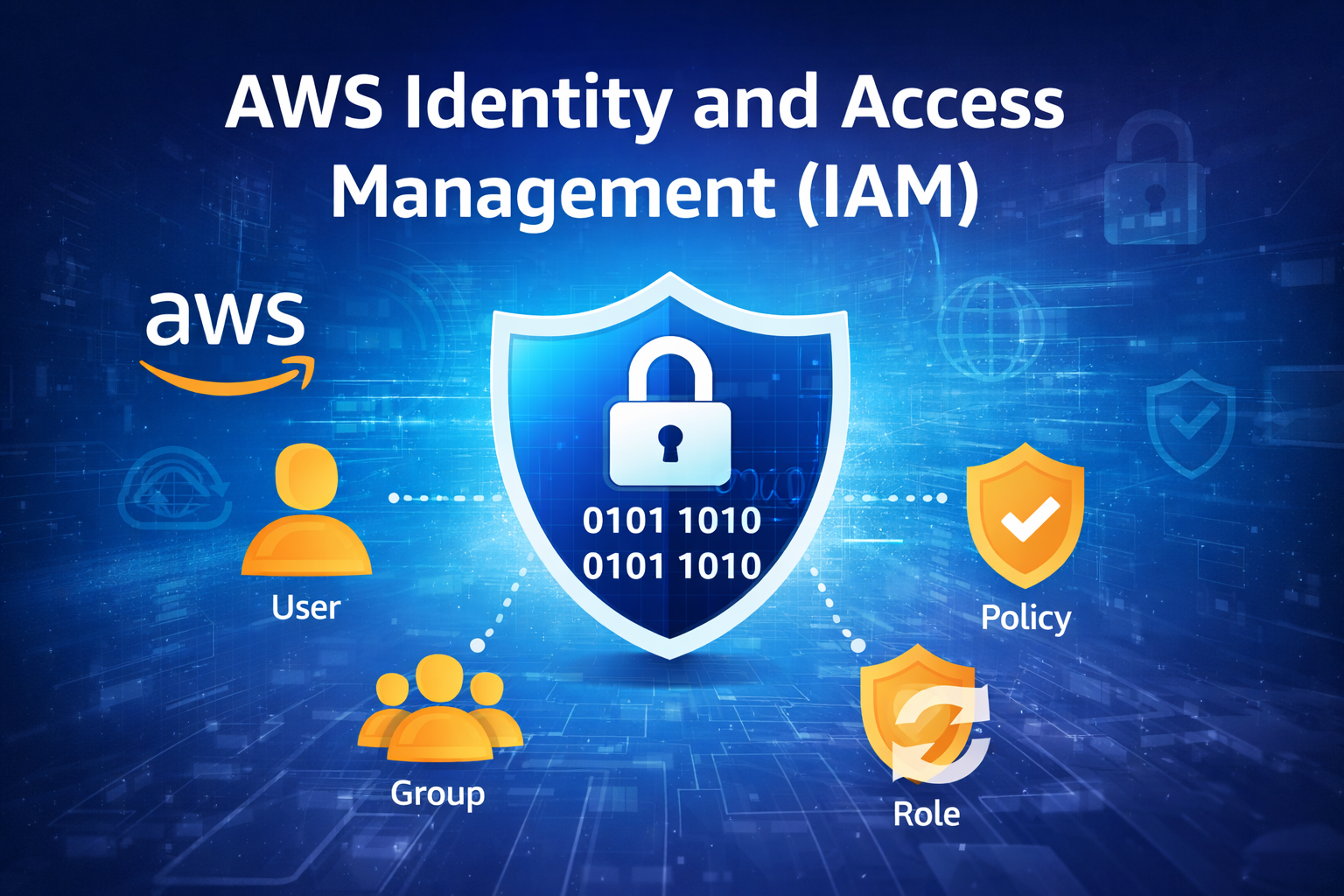
IAM is a service provided by Amazon Web Services that helps you securely control access to your AWS resources.
📖 Simple Definition
👉 IAM = Identity + Access Control System
- Identity → Who (user/role)
- Access → What they can do (permissions)
🔑 Core Components of IAM
👤 Users
- Individual accounts for people or services
- Example: Admin, Developer
👥 Groups
- Collection of users
- Assign same permissions to multiple users
📜 Policies
- JSON documents that define permissions
- Example:
- S3 read-only access
- EC2 full access
🔄 Roles
- Provide temporary access
- Used by AWS services or external users
- No password required
🔐 How IAM Works
- Authentication (AuthN) → Verifies who you are (login)
- Authorization (AuthZ) → Defines what you can do
🧠 Real Example
- Developer → Only EC2 access
- Admin → Full access
👉 IAM controls these permissions
⚙️ One-Line Summary
👉 IAM = Control over who can access AWS and what they can do
🔐 AWS Multi-Factor Authentication Setup (Your Screen)
📍 You have 3 options:
1️⃣ Passkey or Security Key (Recommended by AWS)
👉 Uses:
- Fingerprint / Face unlock
- Physical security key (like USB key)
✔️ Most secure
❗ But needs supported device
2️⃣ Authenticator App ✅ (Best for you)
👉 Uses mobile app like:
- Google Authenticator
- Microsoft Authenticator
📱 Generates 6-digit code
👉 This is the easiest and most commonly used option
3️⃣ Hardware TOTP Token
👉 Physical device that generates code
❗ Rarely used (cost involved)
✅ What YOU should do (Recommended)
👉 Select:
✔️ Authenticator app
📲 Next Steps (Very Important)
- Select Authenticator app
- Click Next
- You will see a QR code
- Open Google Authenticator on your phone
- Scan the QR code
- Enter 2 consecutive codes
- Click Add MFA
🧠 Pro Tip
👉 Name like MyMFASumit is fine 👍
👉 Always enable MFA for:
- Root account 🔥
- IAM users
⚠️ Common Mistake
❌ Entering wrong code
❌ Time mismatch in phone
👉 Fix:
- Turn on auto time sync in phone
⚙️ One-Line
👉 Choose Authenticator App → Scan QR → Enter OTP → Done
📲 Step-by-Step MFA Setup (Next Screen)
✅ Step 1: Select Authenticator App
👉 On your screen:
- “Passkey or security key” is currently selected ❌
👉 Change it to:
✔️ Authenticator app
✅ Step 2: Click Next
👉 Click the Next button (bottom/right)
📸 Step 3: QR Code Screen
👉 You will now see:
- A QR Code
- A manual setup key (backup)
📱 Step 4: Use Mobile App
On your phone:
- Open Google Authenticator
- Tap + (Add account)
- Choose Scan QR Code
- Scan the QR code from AWS
🔢 Step 5: Enter OTP Codes
After scanning:
- You will get a 6-digit code
👉 In AWS:
- Code 1 → Enter current OTP
- Wait ~30 seconds
- Code 2 → Enter new OTP
✅ Step 6: Add MFA
👉 Click:
✔️ Add MFA / Assign MFA
⚠️ Important Tips
- Turn ON auto time sync on your phone
- ❌ Don’t enter the same OTP twice
- 📌 Save the backup key
🧠 Final Result
👉 MFA will be enabled
👉 Next login = Password + OTP required 🔐
👉 Go ahead and click Next now
👉 Now click “Next” and move to the QR code screen.
📌 What to do AFTER clicking Next
When the next screen appears, you should see:
- QR Code
- 2 input boxes for OTP
👉 Then follow this:
📱 On your phone:
- Open Google Authenticator
- Tap + (Add)
- Select Scan QR Code
- Scan the QR shown on AWS
🔢 On AWS screen:
- Enter Code 1 → current OTP
- Wait ~30 seconds ⏳
- Enter Code 2 → next OTP
✅ Final Step:
👉 Click Add MFA
⚠️ If something goes wrong:
- OTP not working → Turn ON automatic time sync
- Code expired → wait for new code
t 👍 Let’s go step by step with interview + real use case + policy example 👇
🔥 IAM Interview Questions (with short answers)
1. What is IAM?
👉 AWS Identity and Access Management is a service to manage access to AWS resources securely.
2. What is the difference between Authentication and Authorization?
- Authentication (AuthN) → Who are you (login)
- Authorization (AuthZ) → What you can do (permissions)
3. What are IAM Policies?
👉 JSON documents that define permissions (Allow/Deny actions on resources)
4. What is an IAM Role?
👉 Provides temporary access without using username/password
5. What is MFA?
👉 Multi-Factor Authentication adds an extra security layer (OTP + password)
6. What is the principle of least privilege?
👉 Give minimum required permissions only
🛠️ Real DevOps Use Case
📌 Scenario:
You have a team:
- Developers
- DevOps Engineers
- Admin
✅ Solution using IAM:
- Create IAM Users
- Create Groups
- Dev → EC2 + S3 access
- DevOps → Full infra access
- Admin → Full access
🔄 Use Roles:
- EC2 instance → access S3 using IAM Role
👉 No need to store credentials (more secure)
📜 IAM Policy Example (JSON)
👉 Example: S3 Read-Only Access
{
  "Version": "2012-10-17",
  "Statement": [
    {
      "Effect": "Allow",
      "Action": [
        "s3:GetObject",
        "s3:ListBucket"
      ],
      "Resource": "*"
    }
  ]
}
🧠 Explanation
- Effect → Allow/Deny
- Action → What actions allowed
- Resource → Which resource
🔐 Best Practices (Important 🔥)
- Enable MFA for all users
- Don’t use root account daily
- Use Roles instead of access keys
- Follow least privilege
- Rotate credentials regularly
⚙️ Final One-Line
👉 IAM = Security backbone of AWS (who + what control)
🔥 Scenario-Based Interview Questions
❓ Q1: Someone deleted an EC2 instance. How will you find who did it?
👉 Answer:
Use AWS CloudTrail to check logs
❓ Q2: Developer should access S3 but not delete objects. What will you do?
👉 Answer:
Create IAM policy → Allow read, Deny delete
❓ Q3: You don’t want to store credentials in EC2. What is the solution?
👉 Answer:
Use IAM Role
❓ Q4: CPU usage crosses 80%. How will you get notified?
👉 Answer:
Use Amazon CloudWatch alarm
❓ Q5: How to secure AWS account from hacking?
👉 Answer:
- Enable MFA
- Use strong password
- Least privilege
- Avoid root usage
🧠 Pro Tip (Interview Killer 🔥)
👉 Always say:
- “Use IAM for access control”
- “Use CloudTrail for auditing”
- “Use CloudWatch for monitoring”
⚙️ Final One-Line Summary
👉 IAM + CloudTrail + CloudWatch = Complete AWS Security + Monitoring System